jekyll+github.io 기반 CV, blog 개설방법
Jekyll 설명 (https://jekyllrb.com/)
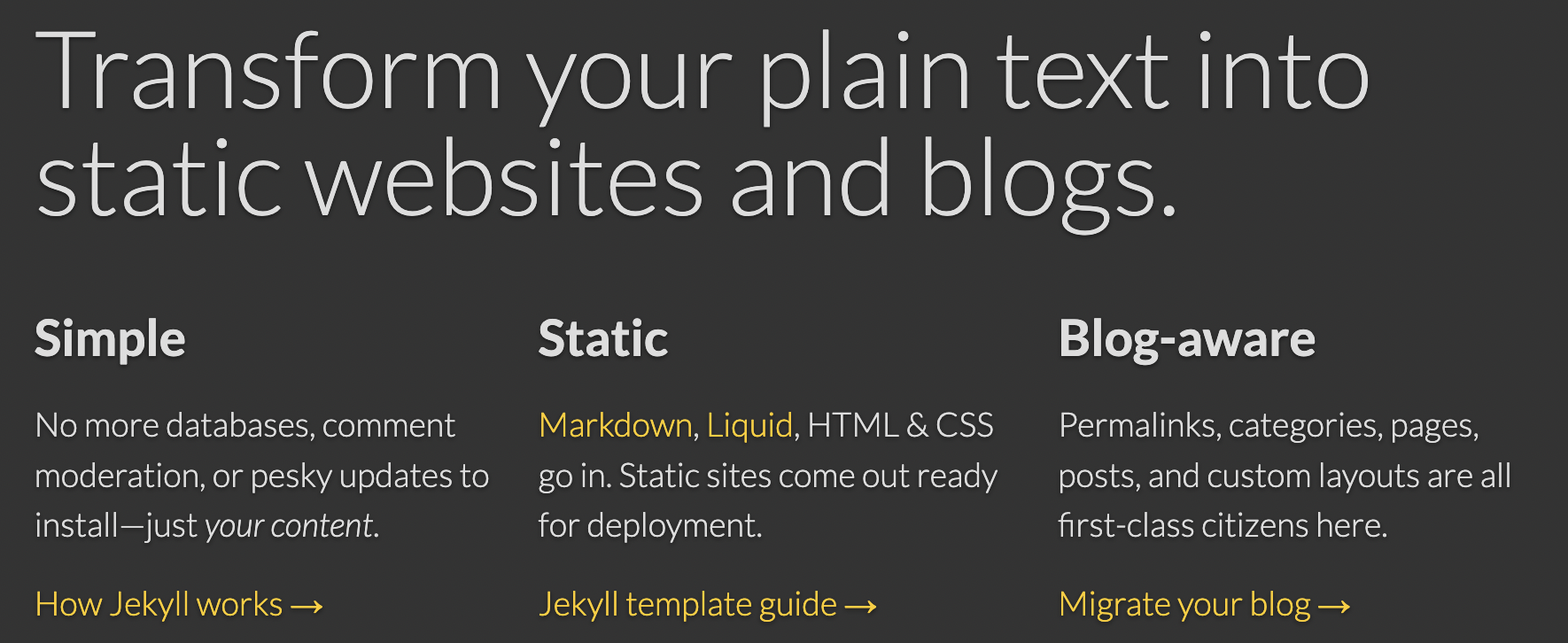
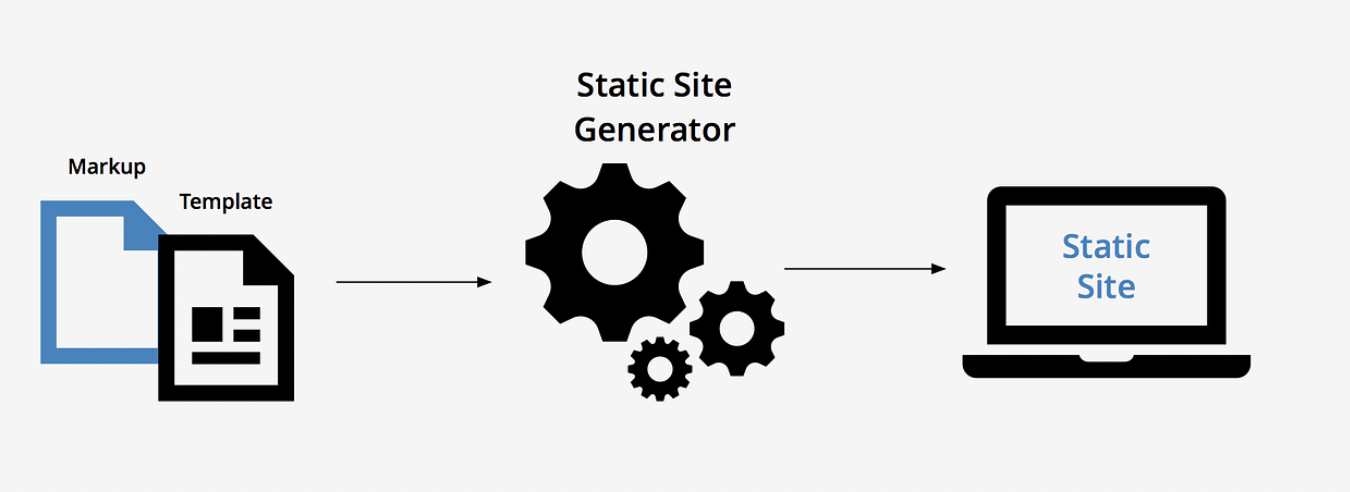
jekyll 은 웹사이트 제작 도구로 마크다운, liquid 같은 정적 페이지를 자유롭게 포스팅할 수 있다
즉, html 몰라도 노션같은 마크다운 파일에 글 작성해서 포스팅할 수 있어 일반인도 사용이 편하다.
Jekyll은 github pages 와 호환성이 높다.
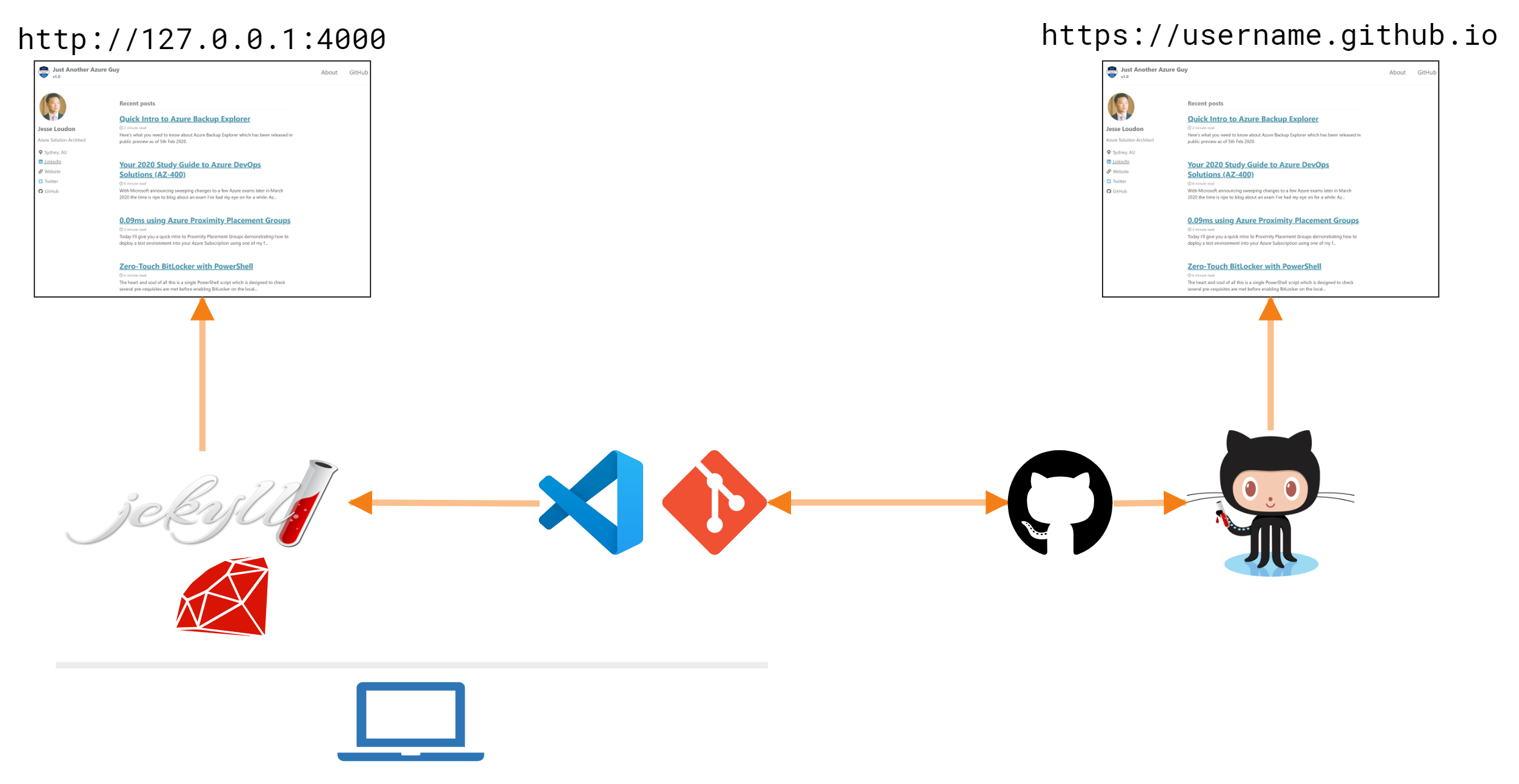
개인 홈페이지 개발 가이드
1. jekyll 개발 환경 구성
(윈도우용 설치 방법) [공식문서] https://jekyllrb-ko.github.io/docs/installation/windows/
Jekyll 설치하기Permalink
RubyInstaller 를 통한 설치Permalink
가장 쉬운 방법은 RubyInstaller for Windows 를 사용하는 것입니다. (jekyll이 32bit이므로 * rubyinstaller에서 WITH DEVKIT 중 (x86) 버전 다운)
RubyInstaller 는 윈도우즈 기반으로 루비 언어와 실행 환경, 중요 문서 등을 포함하고 있습니다. 여기서는 RubyInstaller-2.4 또는 그 이상의 버전을 다루고 있으며, 예전 버전은 따로 Devkit 설치를 필요로 합니다.
- RubyInstaller 다운로드 페이지에서 Ruby+Devkit 버전을 다운로드 받아 설치하세요. 설치 시 기본 옵션을 사용하세요.
- 설치 마법사의 마지막 단계에서
ridk install절차를 수행하세요. Native 확장기능으로 젬을 설치하기 위해 필요한 절차입니다. 이에 관련된 추가 정보는 RubyInstaller 문서에서 찾을 수 있습니다. - 시작 메뉴에서 명령 프롬프트 창을 열고, 환경변수
PATH를 적절히 설정하세요. Jekyll 과 Bundler 를 설치합니다:gem install jekyll bundler - Jekyll 이 올바르게 설치되었는지 확인합니다:
jekyll -v
끝났습니다. 이제 Jekyll 을 사용할 수 있습니다!
모든 설정 default로 설치했다, 설치가 끝나면, ridk install 선택해제 후 완료한다.
(맥북 설치 방법)
# Homebrew 설치
/usr/bin/ruby -e “$(curl -fsSL https://raw.githubusercontent.com/Homebrew/install/master/install)”
brew install ruby
2. jekyll 템플릿 다운로드
(스터디용을 위한 나의 github repository)
https://github.com/KYL92/KYL92.github.io
(다양한 템플릿을 다운 받을 수 있는 jekyll hub)
3. fork 하거나 clone 하여 github remote repository 생성
(아래 내용을 스터디 및 예시를 위해 kyl92.github.io 를 활용함)
1) 일단, git clone https://github.com/KYL92/KYL92.github.io.git
2) 자기 계정에서 github io 레포를 만들기
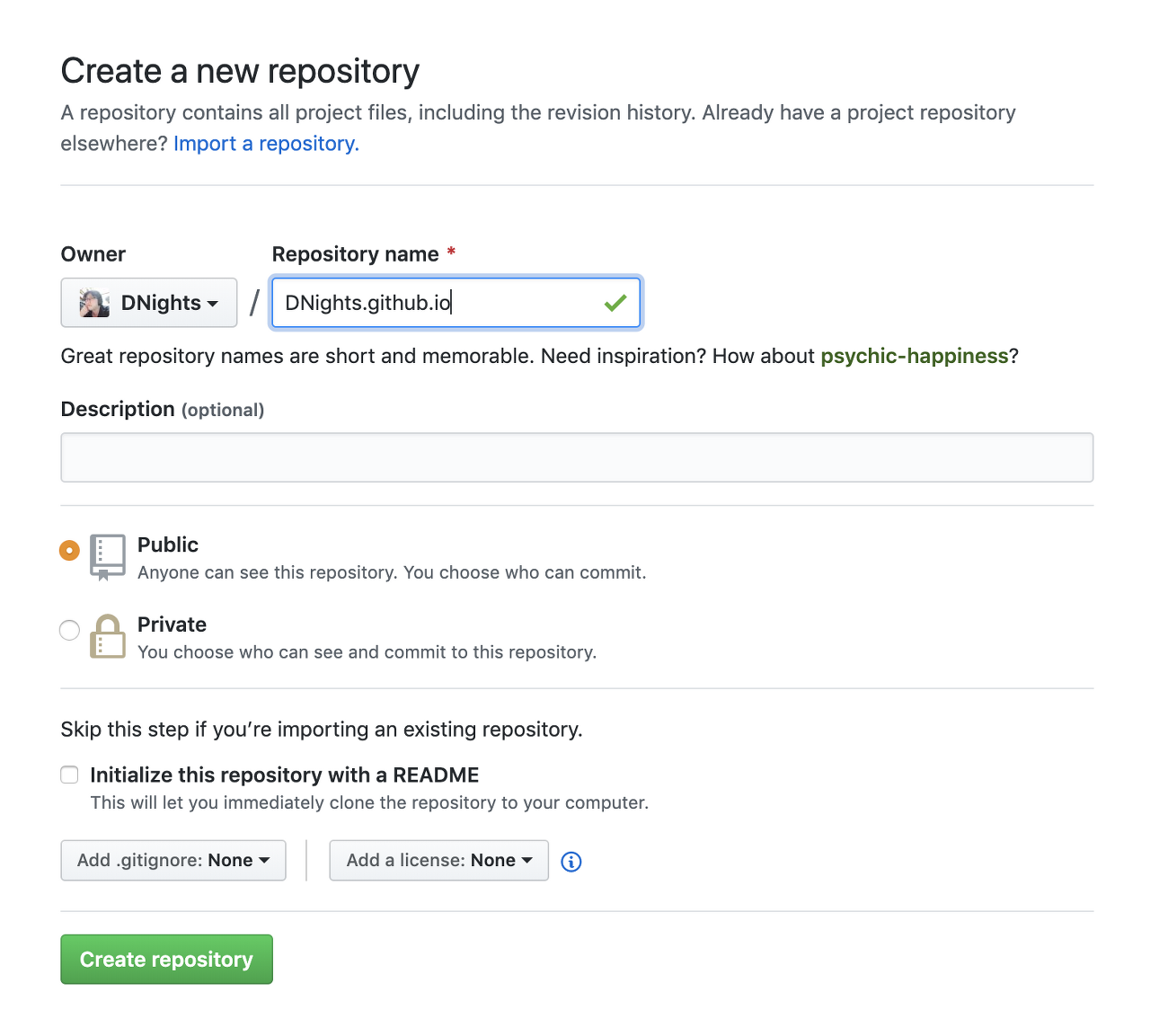
remote 저장소(레포)에 kyl92 clone 한 로컬 레포 올리기
예시) git remote add origin https://github.com/[username]/[username].github.io
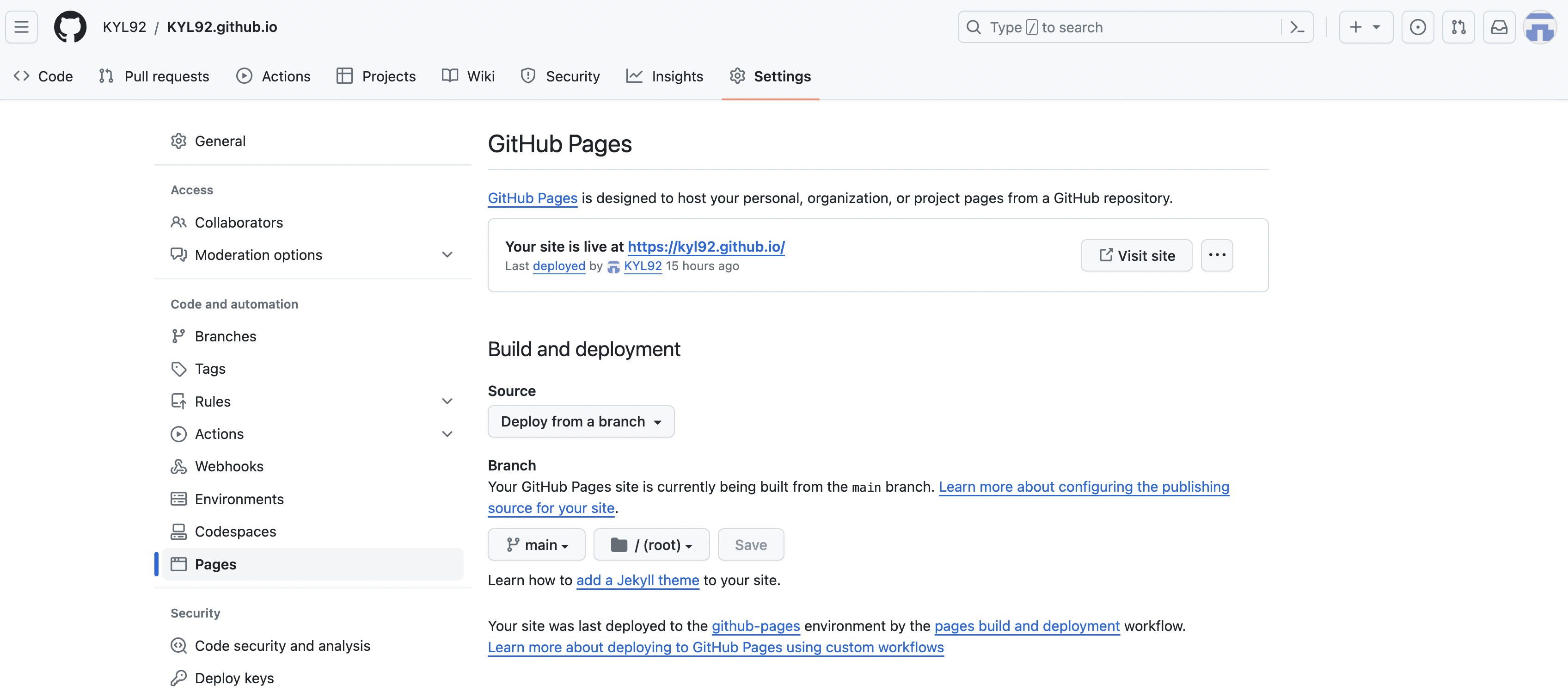
3) 자신의 github 레포 웹페이지 가서 아래 처럼 설정하면 페이지가 올라감, 이후 자신의 로컬에서 커밋해서 remote에 푸쉬하면 업데이트된 코드로 블로그가 빌드됨. (jekyll이 정적 페이지 기반이라는 것은 빌드 후 페이지가 업로드 또는 업데이트 되기 때문)
3. 홈페이지 관리를 위한 속성 가이드 (스터디용 템플릿에서 CV관리, 포스팅 까지만 다룸)
1. “assets/portfolio.png” 자기 사진으로 변경
2. 테마 사용을 위한 gem 기반 설치
Installation
Add this line to your Jekyll site’s Gemfile:
gem "plainwhite"
And add this line to your Jekyll site’s _config.yml:
theme: plainwhite
And then execute:
$ bundle
Or install it yourself as:
$ gem install plainwhite
3. 사전 지식 및 변경 사안들
우선, _config.yml 내용 변경
The “plainwhite” key in _config.yml is used to customize the theme data.
plainwhite:
  name: Adam Denisov
  tagline: Developer. Designer
  date_format: "%b %-d, %Y"social_links:
    twitter: samarsault
    github: samarsault
    linkedIn: in/samarsault # format: locale/username
Updating Placeholder Image
The placeholder portfolio image can be replaced by the desired image by placing it as assets/portfolio.png in your jekyll website, or by changing the following line in _config.yaml
plainwhite:
  portfolio_image:  "assets/portfolio.png" # the path from the base directory of the site to the image to display (no / at the start)
To use a different image for dark mode, e.g. with different colors that work better in dark mode, add a portfolio_image_dark entry in addition to the portfolio_image.
plainwhite:
  portfolio_image:      "assets/portfolio.png"portfolio_image_dark: "assets/portfolio_dark.png"
social_links:
    # twitter: KYL92
    email: guy9284@gmail.com
    github:  KYL92
    youtube: /@user-jf9ru4vb3q
index.md 는 맨처음 홈 html을 나타냄(즉, username.github.io 도메인 접속 시 화면)